Plans
Create your own Plans to assign them to your customers and create Subscriptions.
Plans table
The Plans table collects all of your Plans and displays them based on the date they were created and/or updated. It has pagination so that you can decide the number of Plans to display on a page.
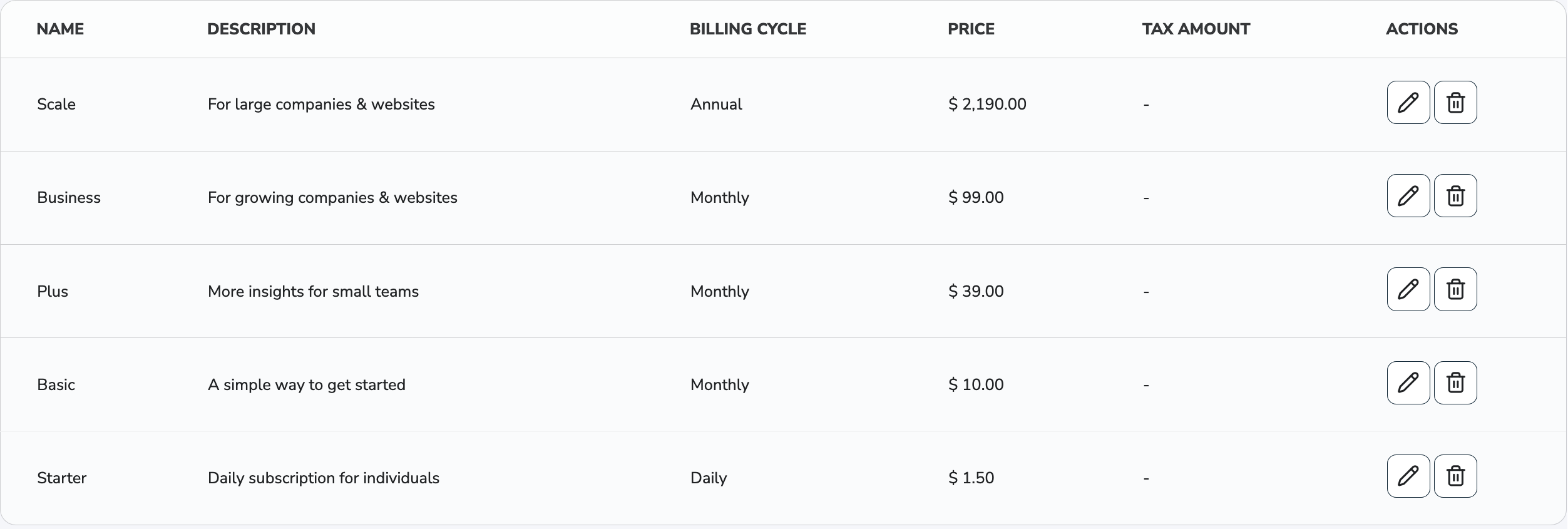
Name
Name of your Plans.
Description
Description of your Plans.
Billing Cycle
Billing cycle of your Plans. It can be Daily, Weekly, Monthly, Every 3 Months, Every 6 Months or Annual.
Amount
Amount charged for your Plans.
Tax Amount
Tax amount of your Plans.
Actions
-
Edit: Edit your existing Plan.
-
Delete: Delete your existing Plan.
Once a Plan has been deleted, the action cannot be undone.
Click on the Plan's row. You will be redirected to see all of the transactions related to that Plan.
Create New Plan
To create a new Plan, simply click on the New Plan button on the Plans list page. This opens the Plan Create page.
Plan Information
Plan Name
Name of your Plan.
This Name will be used in multiple customer-facing products like Forms and Email reminders. Make sure that it is recognizable.
We recommend always including the billing cycle in the name of your Plans.
Plan Description
Description of your Plan.
This Description will be used in some customer-facing products like Email reminders. Make sure that it is recognizable.
Duration
The Duration of the subscription you create for your customer using this Plan.
Trial Period: Enable this feature to use our trial period functionality.
Trial Period Duration: Number of days while the plan is active but the first recurring payment has not been initiated yet.
Subscription Duration Endless: Enable this feature to make the subscription duration endless.
Subscription Duration: Number of cycles the subscription will run for the given subscription.
Frequency
The Frequency your customer will be charged with.
Annual Frequency
Annual Frequency means that your customer will be charged every year on the same day the Subscription starts.
Every 6 Months Frequency
Every 6 Months Frequency means that your customer will be charged every 6 months on the same day the Subscription starts.
Every 3 Months Frequency
Every 3 Months Frequency means that your customer will be charged every 3 months on the same day the Subscription starts.
Monthly Frequency
Monthly Frequency means that your customer will be charged every month on the same day the Subscription starts.
Weekly Frequency
Weekly Frequency means that your customer will be charged every week on the same day the Subscription starts.
Daily Frequency
Daily Frequency means that your customer will be charged every X days calculated from the day the Subscription starts.
For example: if you set the Charge date to 7, your customer will be charged every 7th day. If it's set to 365, your customer will be charged annually.
Amount
The Amount your customer will be charged with.
Trial Amount
Only applicable when there is a Trial Period. The trial amount charged for the Plan at the beginning of the Trial period.
Initial Amount
The Amount of the first transaction of the subscription.
Amount to charge
The Amount associated with the subscription. If the plan has an Initial Amount, the Amount to charge is only applicable from the second transaction. If this Amount is changed during editing, the system will offer to Update existing Subscriptions and Prorated Pricing.
Tax Amount
The Tax Amount included in the Amount of the subscription.
Shipping Amount
The Shipping Amount included in the Amount of the subscription.
Proration Behavior
Controls how mid-cycle billing adjustments are handled when subscriptions on this plan are changed.
None: No proration. Changes take effect at the next billing cycle with no mid-cycle adjustments.
Create Prorations: Calculates and stores a pending proration, consolidated into the next transaction at cycle end.
Immediate Action: Immediately resolves any mid-cycle adjustment. If a credit is owed to the customer, it is applied to their balance; if an amount is owed, the customer is charged right away as a standalone transaction.
Retry logic
Define how failed payments are retried using a retry schedule. Each retry is a separate attempt with its own delay, so you control how many days to wait before each attempt rather than relying on a single fixed interval.
- Retry schedule: An ordered list of retry attempts (1st Retry, 2nd Retry, and so on). For each attempt, set the number of days to wait before it runs. The first retry is counted from the initial failed payment, and each later retry is counted from the previous failed attempt.
- Add retry: Add another attempt to the end of the schedule. You can schedule up to 5 retries in total.
- Delete: Remove a retry from the schedule. The number of retries equals the number of attempts you have scheduled.
By default, the schedule starts with three retries. You can edit any value, add more attempts, or remove them.
Retry logic applies to subscriptions paying by credit card. Due to the nature and timeline of ACH payments, it is not relevant for the ACH payment method.
Plan Update
Update existing Subscriptions: Enable this feature to automatically update new values and override the old ones for your existing subscriptions.
Prorated Pricing: Activating this ensures that the new amount is accurately prorated for the current partial billing cycle when calculating the next billable amount for existing subscriptions. Requires Update existing Subscriptions.